Cursor’s desktop editor uses one signed-in account at a time. To switch between personal, work, or client accounts, sign out of the current account and sign back in with the other credentials. Then check that account’s usage in the Cursor dashboard before starting a long task.
Switch accounts in the Cursor editor
Cursor support’s account-switching instructions are:
- Open Cursor Settings → Account and choose Sign Out. You can also open the Command Palette and search for Sign Out.
- Sign in with the other Cursor account.
- Open a project and confirm the account shown in Cursor before using Agent.
Signing out does not switch your project folder or move your local work to another account. Cursor support says chat history, rules, and the codebase index remain stored locally on the machine. Keep that in mind on a shared computer: changing the Cursor login is not the same as creating a separate Windows or macOS user profile.
If you use the Cursor CLI as well, check its login separately. Run cursor-agent status to see its authentication state, cursor-agent logout to sign out, and cursor-agent login to authenticate with the account you intend to use. The CLI status command can help catch a mismatch between your terminal and the desktop editor.
Check usage for each account
Cursor usage belongs to the account or team you are signed in to. After switching accounts, open cursor.com/dashboard, sign in with the same account, and select Spending. The page shows the account’s remaining usage and reset date, along with any on-demand charges. See how to check Cursor usage if you need help interpreting the separate rows.
Most current Cursor plans show separate usage pools for Cursor Models and Other Models. Check both meters; they may have different remaining amounts. The model you choose affects which pool is used and how quickly it runs down. Plan details can vary, so use the meters shown for your account rather than assuming every account has the same allowance.
For a quick record when you rotate among accounts, note:
| Account label | Check before you start |
|---|---|
| Personal | Remaining pools, reset date, on-demand setting |
| Work team | Remaining usage, team reset date, admin spending rules |
| Client | Remaining usage and whether this is the approved account for the project |
Don't treat one account’s remaining usage as available on another. Each account has its own plan and billing settings. On-demand usage can add charges after included usage runs out, so check whether it is enabled and whether a spend limit is set.
Avoid signing into the wrong account
The easiest mistake is checking usage in one browser account while Cursor itself is signed into another. Before you begin a long Agent session:
- Check the signed-in account in Cursor.
- Open the dashboard for that same account.
- Review both usage pools, the reset date, and on-demand settings.
- If the account is for a team or client, make sure you are using the access they authorized.
If you switch accounts often, use clear names in your own notes, such as Personal Cursor, Studio Team, or Client – approved seat. On a shared computer, sign out when you finish and use separate operating-system accounts to keep local files and sessions separated.
Track multiple Cursor accounts without repeating the checks
Cursor’s Spending dashboard gives you the detail for the account you open. If you keep several accounts, checking each one means repeating the sign-in, dashboard, and comparison steps.
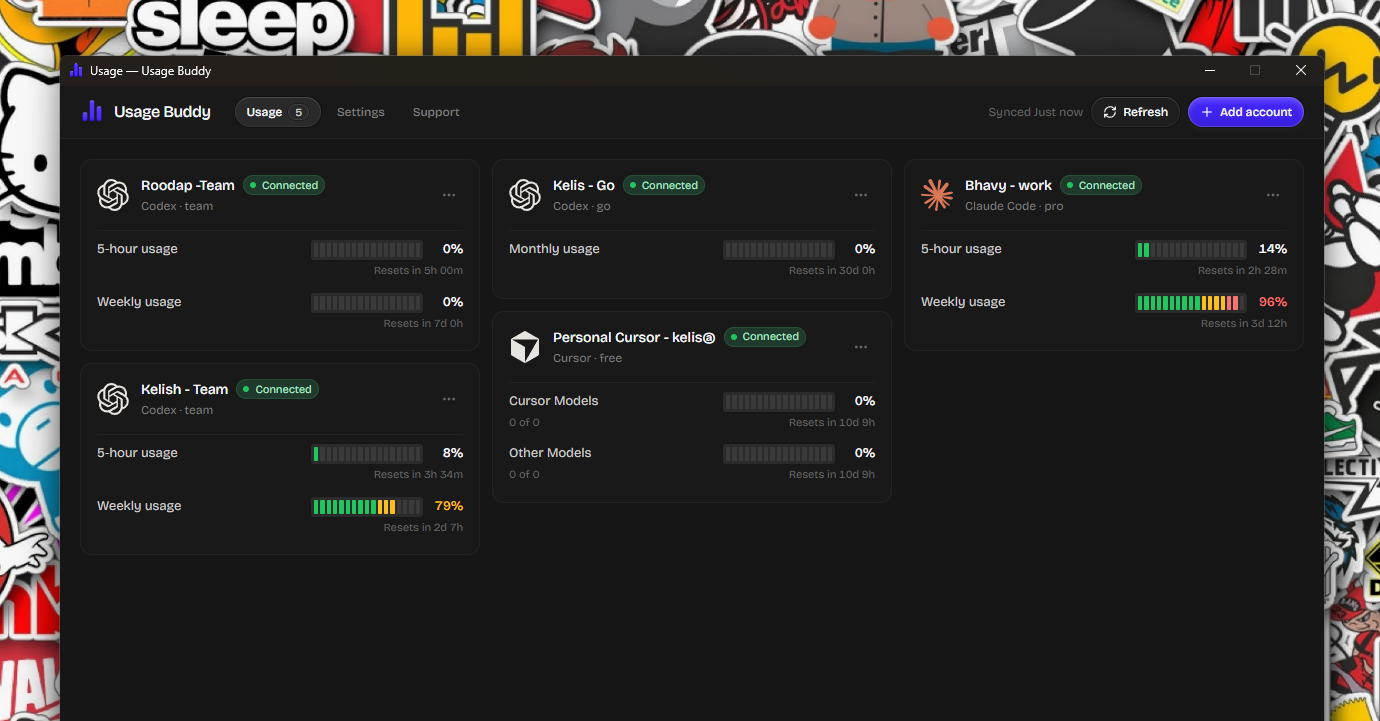
Usage Buddy can monitor supported Cursor accounts in one desktop dashboard. Label accounts so you can tell personal, team, and client usage apart, then compare remaining usage and reset times together. You can set warning thresholds and receive alerts as an account runs low or becomes available again.
Usage Buddy also supports Claude Code and Codex accounts. The cross-tool usage guide shows how to compare their different reset clocks. It runs on Windows 10/11 (64-bit) and macOS 14 or later, keeps credentials and usage data on your computer, and costs $4.99 once for a lifetime license. If you use one Cursor account, the Spending page is enough. If you check several Cursor and coding-agent accounts every week, the combined view saves those repeated checks. To set it up, connect Cursor to Usage Buddy.