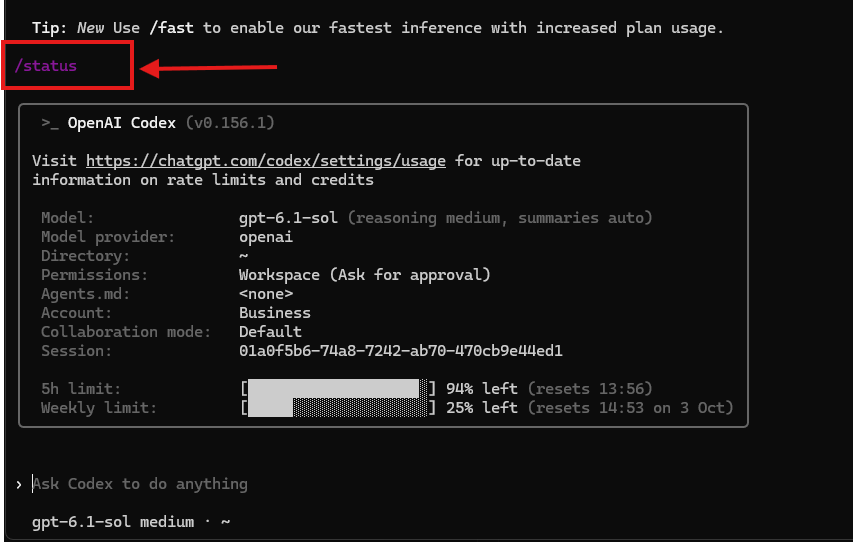
Open the Codex usage dashboard to see your current limits and reset times. If you are already working in a Codex CLI session, enter /status for a quick view of the remaining allowance. Check the dashboard when you need the complete account-level picture, including any credits available after the included usage runs out.
Check Codex usage from the dashboard
For Codex connected to a ChatGPT account:
- Open the Codex usage dashboard.
- Sign in to the ChatGPT account you use with Codex.
- Check the percentage used or remaining for each displayed window.
- Read the reset time beside the limit instead of calculating it yourself.
- Check the credit balance if your plan supports additional credits.
The meters shown depend on your plan and workspace. Personal plans may show a five-hour limit, a weekly limit, and purchased credits. Managed Business, Enterprise, or Edu workspaces can use different billing and spending controls, so the workspace dashboard and administrator settings may affect what you see.
Confirm which account or workspace is selected before reading the numbers. This matters when you have a personal ChatGPT account and one or more work accounts open in the same browser.
Check usage inside Codex CLI with /status
You do not need to leave the terminal for a quick check:
- Open an active Codex CLI session.
- Enter
/status. - Read the remaining usage and reset information returned for the signed-in account.
Use /status when you want to decide whether there is enough capacity for the next task. Use the web dashboard when you need to inspect credits or confirm the account and workspace details.
If /status does not show the account you expected, verify how Codex is authenticated. A ChatGPT login uses the allowance attached to that ChatGPT account. An API key uses separate API billing and rate limits.
Included usage, credits, and API billing
These three numbers are easy to mix up:
| Type | What it means | Where to check |
|---|---|---|
| Included usage | Capacity provided by the ChatGPT plan | Codex usage dashboard or /status |
| ChatGPT credits | Paid balance used for eligible work after included limits | Codex usage dashboard and ChatGPT billing controls |
| API usage | Token-based charges for work authenticated with an API key | OpenAI Platform usage and billing pages |
Tokens measure the information Codex reads and writes. Your prompt, project files, conversation history, tool results, reasoning, and final response all use tokens.
Credits are a payment unit on eligible credit-based plans. They can let you continue after included usage is exhausted. They do not change how much context a task requires, and they are separate from an OpenAI API balance.
An API key can be useful for local work after a ChatGPT allowance is exhausted, but API requests are charged at the API rates for the selected model. Set a budget before using this as a fallback so a long task does not produce an unexpected bill.
Why the usage percentage can move faster on some tasks
Codex usage is not a fixed prompt counter. Two requests that look similar can consume different amounts of the allowance.
A task normally becomes heavier when it includes:
- A large repository or many source files
- A long conversation that carries earlier context
- High reasoning effort
- Several terminal commands or tool calls
- Web research or external retrieval
- Image generation or image editing
- A long response, test run, or code review
Local messages and cloud tasks can also consume the allowance differently. OpenAI’s current guidance says cloud chats may use more capacity than local messages because they run with a different execution setup and can hold more context.
This is why estimating usage from the number of messages rarely works. The percentage and reset time shown by Codex are more reliable than counting prompts.
How Codex reset times work
Codex can show more than one usage window. A five-hour allowance covers short-term usage, while a weekly limit controls longer-term capacity. Your account may also have other controls based on its plan or workspace.
Each meter has its own reset time. Reaching one limit does not mean every meter is empty, but the exhausted limit can still stop new work. Read the notice in Codex or the dashboard to identify which allowance ran out.
The reset time is account-specific. Do not assume it will reset five hours after the moment you check. Use the time displayed by Codex, especially if the account has been active across several devices or Codex surfaces.
What to do when Codex reaches a limit
If a task is already blocked, start with these usage-limit recovery steps.
If a turn is already running when the account reaches its limit, Codex may finish that turn subject to fair-use controls. New work may need to wait or use another available option.
Check the dashboard, then choose the option that fits the account:
- Wait for the exhausted window to reset.
- Switch to a smaller model for lighter work if one is available.
- Use purchased ChatGPT credits on an eligible plan.
- Move the task to another Codex account with available usage.
- Run local work with an API key and pay the API rate.
- Ask a workspace administrator about a team limit or credit balance.
Buying credits is not always necessary. If the reset is close, save the current state of the task and continue after the window refreshes. Use extra credits when stopping would cost more than the added usage.
Make the Codex allowance last longer
Reducing irrelevant context helps more than trying to shorten every prompt.
- Give Codex only the files needed for the task.
- Narrow broad requests into a clear deliverable and scope.
- Keep
AGENTS.mdfocused on instructions that apply to the current directory. - Disable MCP servers that the task does not need.
- Use a smaller model for routine edits, extraction, or repetitive work.
- Ask for a plan before a large change so you can correct the approach before Codex edits many files.
- Start a fresh task when the existing conversation contains unrelated work.
A precise task can still be detailed. Include the acceptance criteria, relevant paths, and constraints. Remove background material that Codex cannot use to make a decision or complete the work.
Checking several Codex accounts in one place
The Codex dashboard and /status work well when you use one account. With several personal, team, or client accounts, checking each one means switching accounts, recording percentages, and comparing reset times by hand. The ChatGPT account-switching guide for Codex helps you verify which login owns each meter.
Usage Buddy places supported Codex accounts in one dashboard across Windows 10/11 (64-bit) and macOS 14 or later. You can name each account, compare its remaining allowance and reset time, and set a warning threshold before usage runs low. It also supports Claude Code and Cursor, so you can check the tools together before choosing where to start a long task.
Credentials and usage data stay on the computer. The licence costs $4.99 once. If you use a single Codex account, the native dashboard may cover what you need. The combined view becomes useful when several accounts and reset clocks are part of the daily workflow. If you decide to use it, see how to connect Codex to Usage Buddy.